
How to Create a Team Workspace
Learn how to create a team workspace in PintorLab: set up chat, goals, rules, then invite teammates to start collaborating in minutes.
Creating a team workspace in PintorLab is one of the quickest ways to bring your entire team together in one organized space. Instead of jumping between messaging apps, document editors, task managers, and spreadsheets, a team workspace gives you a central hub where everyone can communicate, collaborate, and stay on the same page. Whether you're building a startup, managing client projects, or coordinating a marketing campaign, getting started only takes a few minutes.
To create a workspace, open Labs from your PintorLab dashboard and click New Project. During setup, choose the Work / Team template, which is designed specifically for collaboration. Unlike the Study workspace, this template includes team chat, shared documents, goals, project rules, automations, CRM, and progress tracking, making it ideal for professional teams.
After selecting the template, you'll be asked to personalize your workspace. Give your project a name that's easy for everyone to recognize, write a short description explaining its purpose, choose an icon, and optionally add a project tag to help organize similar workspaces later. You can also set a target completion date to keep your team focused on deadlines and milestones. Once everything is filled out, simply click Create Project, and your new workspace will be ready instantly.
The next step is inviting your teammates. From the Overview page, click Invite and enter the email address of each team member. PintorLab automatically checks whether the person already has an account, making invitations quick and straightforward. As you invite people, you can assign different permission levels. Administrators have full control over the workspace, Editors can create and modify content, and Viewers have read-only access, ensuring everyone has the right level of responsibility.
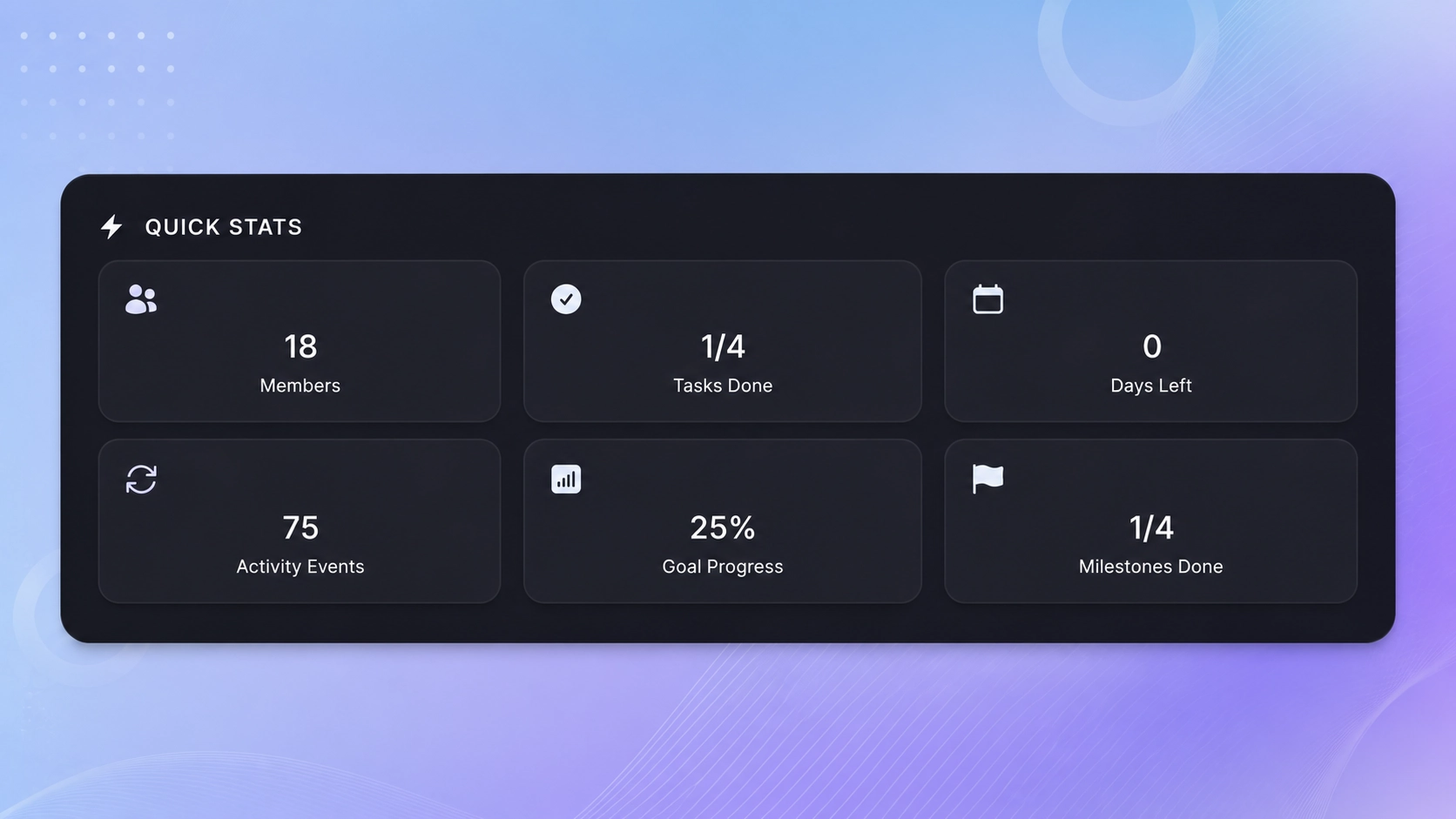
Once your team joins, the workspace becomes the central place where collaboration happens. The Overview page provides a snapshot of your project, while the built-in Chat keeps conversations organized with real-time messaging, replies, formatting, and file sharing. Instead of scattering important discussions across multiple apps, every conversation stays connected to the project where it belongs.
Beyond communication, PintorLab includes powerful tools for managing work from start to finish. Teams can document ideas and meeting notes inside Space, define objectives in Goals, create company guidelines in Rules & Policies, automate repetitive tasks using Automations, monitor progress with visual reports, and organize customer information through the built-in CRM. Additional productivity features are available in the Tools section, giving your team everything needed to work efficiently without leaving the platform.
One feature that makes PintorLab especially useful is its built-in AI Assistant. Available throughout the workspace, it can summarize discussions, answer project questions, generate content, brainstorm ideas, and help team members quickly find information. As projects become larger and more complex, the AI Assistant helps reduce manual work and keeps everyone moving forward.
The number of workspaces you can create depends on your PintorLab subscription plan. If your team grows or you begin managing multiple departments, products, or clients, upgrading your plan allows you to create additional Labs while keeping every project organized under one platform.
With your workspace created and your teammates invited, you're ready to start collaborating. Everything from conversations and documents to goals, automations, and project updates is stored in one place, making it easier for everyone to stay aligned and focus on getting work done instead of managing multiple tools.